Overview
Customize your chat widget to match your dealership’s brand. Changes apply instantly to your website.
Branding
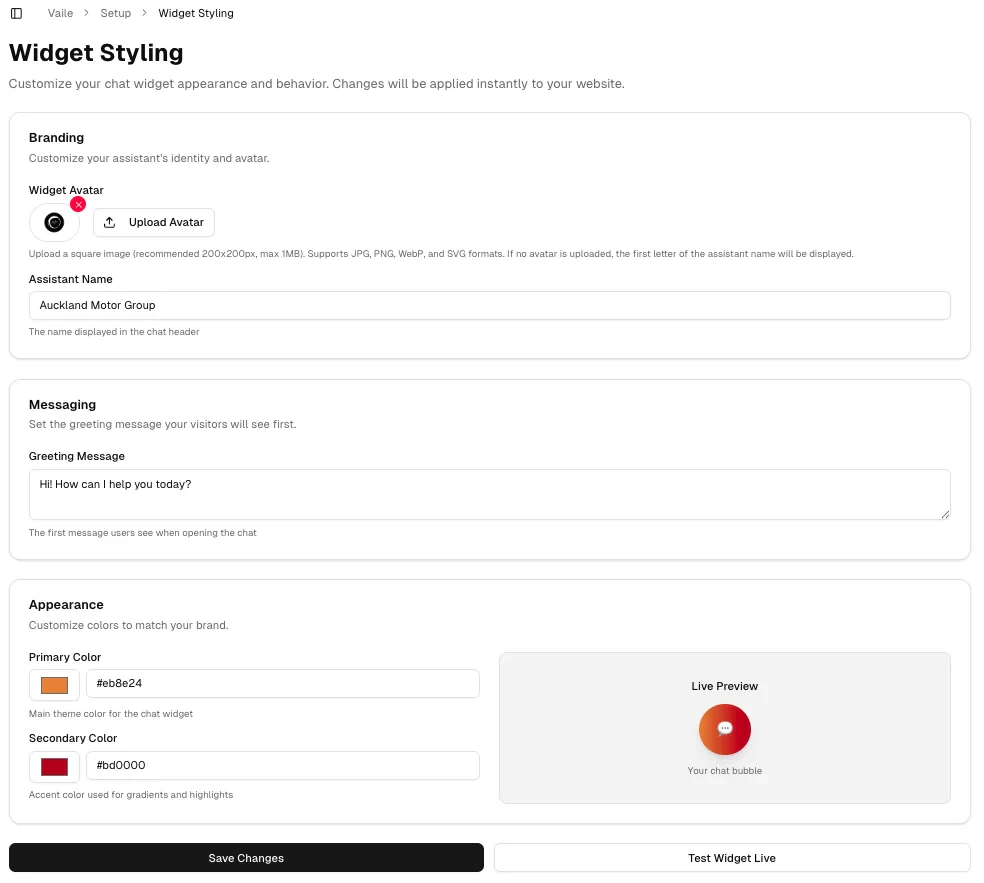
Navigate to Setup → Widget Styling to customize your assistant’s identity.
Upload a square image (recommended 200x200px, max 1MB) for your assistant’s avatar. Supports JPG, PNG, WebP, and SVG formats.
If no avatar is uploaded, the first letter of the assistant name will be displayed.
Assistant Name
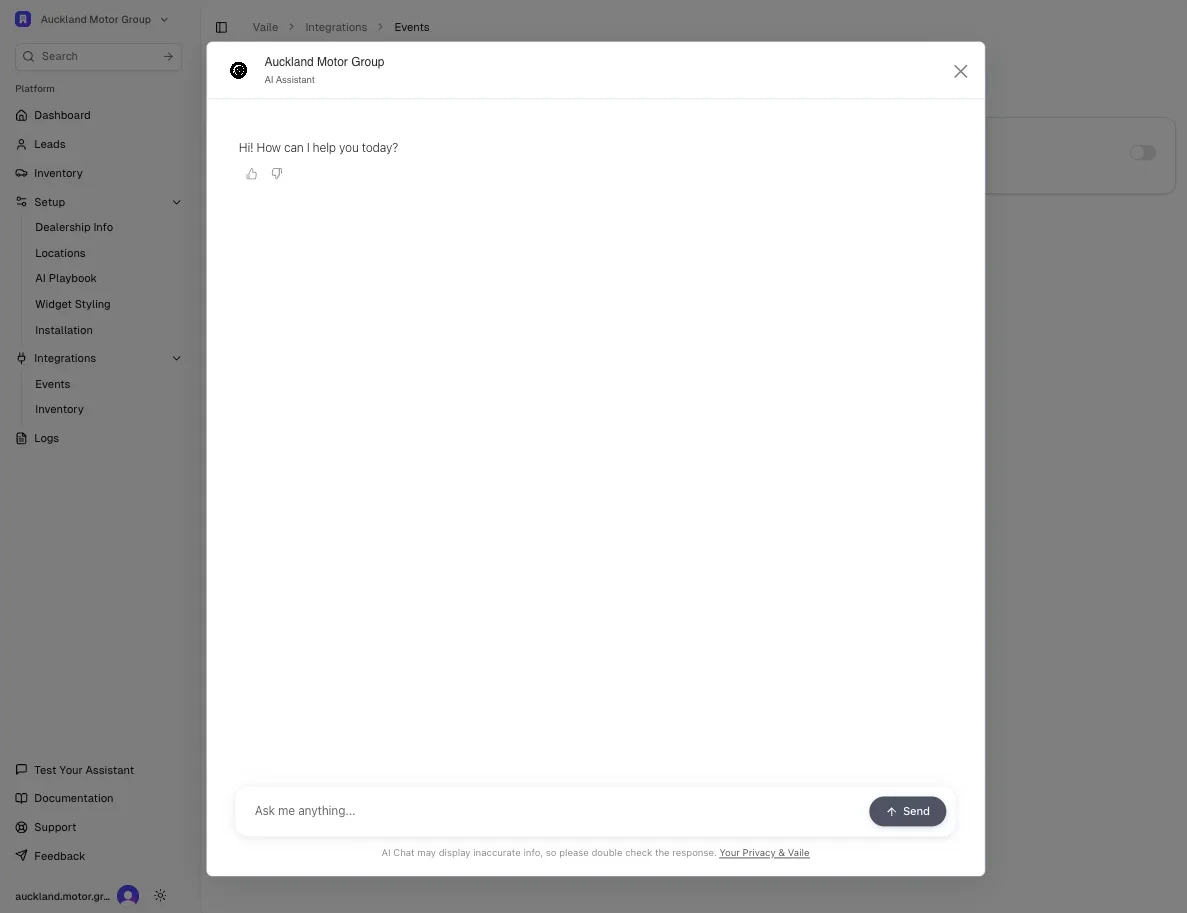
Set the name displayed in the chat header. This is the name customers will see when chatting with your assistant.
Example: “Auckland Motor Group”
Messaging
Greeting Message
Set the first message visitors see when opening the chat.
Example: “Hi! How can I help you today?”
This greeting appears immediately when customers open the widget.
Appearance
Primary Color
Main theme color for the chat widget. Used for the chat bubble and primary elements.
Secondary Color
Accent color used for gradients and highlights throughout the widget interface.
Live Preview
See changes in real-time with the live preview on the right side of the screen. Your customizations update instantly as you adjust colors and settings.
Applying Changes
Click Save Changes to apply your customizations. The widget on your website will update immediately.
Click Test Widget Live to open your chat widget and verify your customizations appear correctly.
Test your widget after making changes to ensure colors are readable and branding looks correct.